
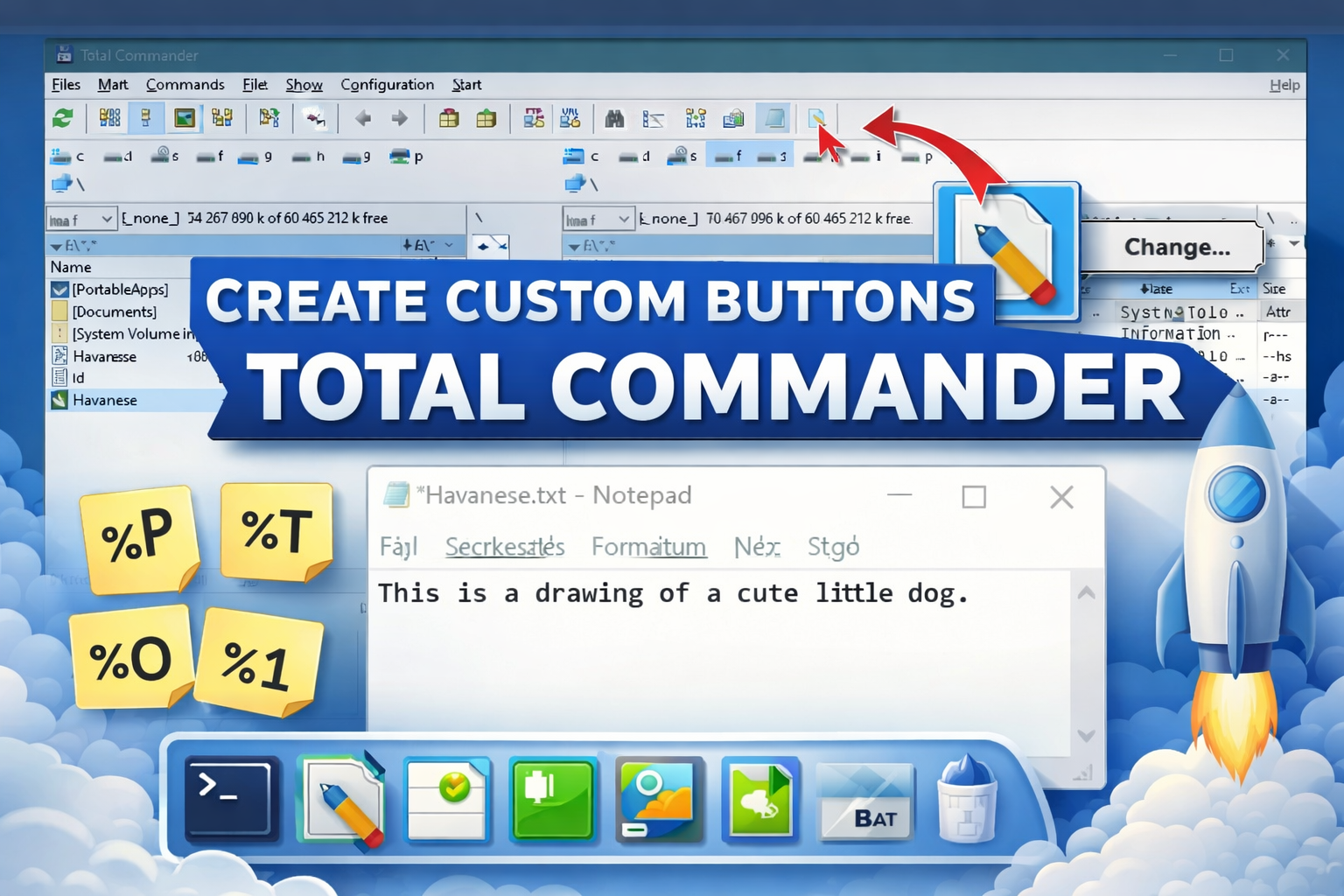
Total Commander’s button bar can launch programs, run scripts, open folders, and automate repetitive file‑management tasks with a single click. You can also pass the currently selected file(s) as parameters, which makes custom buttons ideal for conversion tools, batch renaming helpers, backup scripts, and “open in …” workflows.
Custom buttons are stored in button bars (toolbars). The default bar is visible at the top, but you can create multiple bars and switch between them.
- Right‑click an empty area of the button bar → Change… (or Edit bar…, depending on version)
- Or use: Configuration → Button bar…
- Right‑click the button bar → Change…
- Click Add (or Append) to create a new button.
- Fill in the essentials:
- Command: the program, internal command, or script to run
- Parameters: optional command‑line arguments
- Start path: optional working directory
- Icon: pick an icon file or extract an icon from an EXE/DLL
- Click OK, then Save the button bar.

Example 1 — Open a terminal in the current folder
- Command:
cmd.exe - Parameters:
/k cd /d "%P" - Icon: an icon from
cmd.exe
%P expands to the active panel’s current path.
Example 2 — Open the selected file with a specific app
- Command:
"C:\\Program Files\\Notepad++\\notepad++.exe" - Parameters:
"%1" - Icon: custom icon, if possible from the specified app (see below).
%1 expands to the full path of the first selected file.
Example 3 — Creating notes for files
- Command:
cmd.exe - Parameters:
/c type nul > "%O.txt" & start notepad.exe "%O.txt" - Icon: choose any icon you like (e.g., from
wcmicons.dll). - Tooltip: Create a note for this file.

%O), pick an icon, and click OK to save the custom buttonUsage: This creates an empty .txt file using the selected file’s name, then opens it in Notepad. Select a single file (e.g., image1.jpg), click the button, and Total Commander will create image1.txt and open it immediately so you can start editing.

.txt note (e.g., Havanese.txt) and opens it in Notepad for immediate editing.Szuper, örülök, hogy megvan a tökéletes kombináció! Az a trükkös rész ebben, hogy a TC intelligenciája (automatikus idézőjelezése a %P%N-nél) és a kézi formázás itt találkozott szerencsésen.
Íme a kért angol nyelvű kiegészítés, amelyet közvetlenül beilleszthetsz a Motley Science cikked 4. példájaként. Pontosan követi a technikai blogposztok stílusát, elmagyarázza a letöltési helyet, a paraméterek logikáját és a Total Commander idézőjeles sajátosságait is.
Example 4: Convert Word Documents to PDF with Bookmarks (Table of Contents)
If you frequently need to save Microsoft Word files as PDFs while preserving your headings as interactive PDF bookmarks (the sidebar navigation panel), you can fully automate this with a single click. To achieve this, we will use an open-source command-line utility called OfficeToPDF.
Prerequisites
Since this is an external tool, you need to download OfficeToPDF.exe. It is a standalone executable created by Cognidox that leverages Microsoft Office’s native export engine under the hood. You can download the latest release directly from their official OfficeToPDF GitHub Repository.
Once downloaded, place the .exe file in a dedicated folder (for example, C:\Tools\).
Button Configuration
Right-click an empty area on your Total Commander button bar, choose Change…, click Add, and fill out the configuration fields exactly as follows:
- Command:
"C:\Tools\OfficeToPDF.exe"(Make sure to include the double quotes if your path contains any spaces) - Parameters:
/bookmarks %P%N "%P%O.pdf" - Start path: (Leave completely blank)
- Icon file:
C:\Tools\OfficeToPDF.exe(Or choose a custom PDF icon) - Tooltip:
Convert Word to PDF with Bookmarks
Understanding the Parameter Syntax
This specific parameter string is tailored to handle a subtle quirk in how Total Commander processes file names with spaces:
/bookmarks: This switch instructs the conversion engine to scan the Word document for native heading styles (Heading 1, Heading 2, etc.) and automatically convert them into interactive PDF bookmarks.%P%N(No quotes): If your source file name contains spaces (e.g.,02 Quality Assurance.docx), Total Commander automatically wraps%P%Nin hidden quotation marks before executing the command. If you were to manually type"%P%N", it would result in malformed nested quotes (""path"") and cause the tool to throw a file type error."%P%O.pdf"(With quotes): Unlike the raw file name variable, when you append a custom extension like.pdfto the base name variable (%P%O), Total Commander does not automatically add quotes. Therefore, we must explicitly wrap this target parameter in quotation marks to prevent the command from breaking if the file name or any parent directory contains spaces.
Now, simply select any .docx file in your panel, click the button, and a clean, navigated PDF will be generated instantly in the same directory.
The power feature: parameter placeholders
Total Commander can insert paths and names into your command line. The most commonly used placeholders:
%P— current path in the active panel%T— current path in the target (inactive) panel%1— first selected file (full path)%N— selected file name(s) without path%O— selected file name(s) with full path (multi‑select)%S— source path (active panel)
Tip: for multi‑select operations, prefer placeholders that expand to all selected items (e.g., %O). Some tools require quoting/escaping rules—test with filenames that contain spaces.
Add a custom icon (and make it look good)
In the button editor:
- Click the icon field.
- Choose:
- an
.icofile, or - an icon embedded in an
.exe/.dll.
- an
If you want a coherent style, keep icons:
- the same size (typically 16×16 or 32×32 depending on UI scaling),
- high contrast,
- and recognizable at a glance.
Organize: separators and multiple bars
As your toolbar grows, add structure:
- Separators: insert them between button groups (e.g., “Archive”, “Convert”, “Dev tools”).
- Multiple bars: create a second bar for special tasks and switch when needed.
If you have a converter that accepts input and output paths:
- Command:
"C:\\Tools\\imgconv.exe" - Parameters:
"%O" "D:\\Converted\\"
This sends all selected files (%O) to the converter and places output in a fixed folder.
Troubleshooting
Checklist
- Nothing happens: check the command path; quote paths with spaces.
- Wrong folder opens: verify
%Pvs.%T. - Multi‑select fails: your program might not accept multiple filenames; try a script wrapper.
- Weird quoting issues: test filenames with spaces, accents, and parentheses.
Troubleshooting: Debugging with the “cmd /k” Trick
If you click your custom button and a black command prompt window flashes for a split second and disappears without generating a PDF, the program is throwing an error, but Windows is closing the window before you can read it.
To diagnose what is going wrong, you can use a clever built-in Windows trick to force the command line window to stay open.
Step 1: Temporarily Modify the Button
Right-click your custom button, select Change…, and temporarily adjust the configuration fields to use the Windows Command Processor as a wrapper:
- Command:
cmd /k - Parameters:
""C:\Tools\OfficeToPDF.exe" /bookmarks %P%N "%P%O.pdf""
Step 2: Run and Read the Error
The /k switch tells Windows to execute the command that follows it and then keep the prompt window open. Now, when you select your file and click the button, the black window will remain on your screen.
This allows you to see the exact error message—for instance, if the utility is reporting that Microsoft Word (WINWORD.EXE) is locked up in the background, waiting for a hidden dialog box or update prompt to be cleared.
Important: The CMD Quote Trap
Notice the double quotation marks at the very beginning and the very end of the Parameters line. The Windows Command Prompt (
cmd.exe) has a notorious quirk: when it receives multiple pairs of quotes after a/kor/cswitch, it automatically strips away the outermost first and last quotation marks.By wrapping the entire parameter string in an extra set of quotes (
""executable" options args""), you safeguard your internal paths from being truncated, ensuring the command executes exactly as intended during debugging.
Once you have identified and resolved the issue (such as ending a frozen Word process via Task Manager), you can revert the button back to its original settings to restore silent, seamless one-click conversion.
Takeaway
Custom buttons are Total Commander’s “micro‑automation” layer: a one‑click launcher with smart context (selected files, current folder, target folder). The possibilities are essentially endless—what you build next is limited mostly by your workflow and imagination.